

Documentation Index
Fetch the complete documentation index at: https://docs.evo-ai.co/llms.txt
Use this file to discover all available pages before exploring further.
Overview
Agent Configurations allow you to customize and extend your agents’ capabilities through various integrations and tools. Each configuration offers specific functionality for different needs: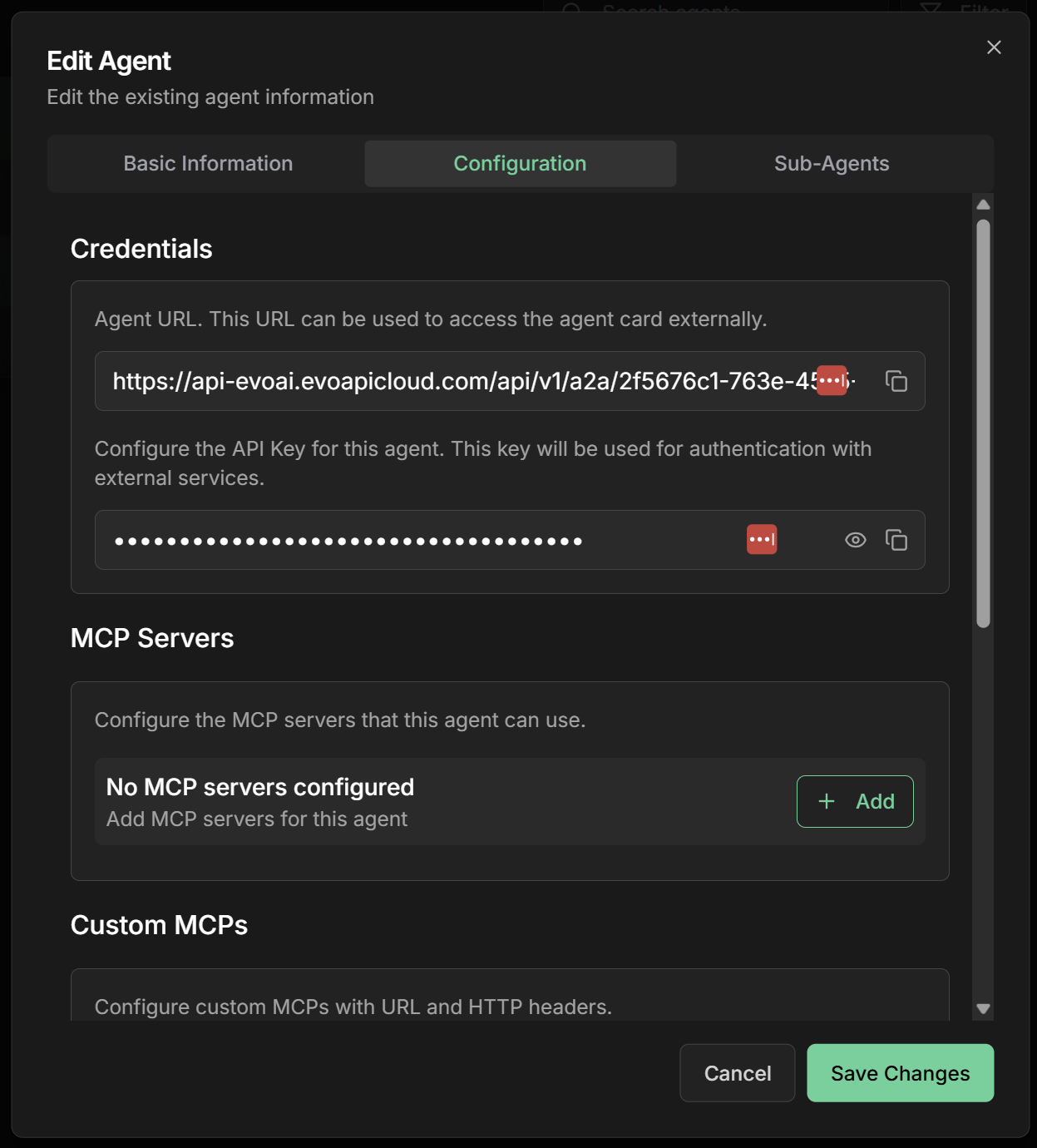
Accessing Configurations: To access any agent’s configurations, click the settings icon (⚙️) on the agent card and then click “Edit”.
Available Configurations
Sharing and Access
Share Agent
Share agents publiclyGenerate public URLs so other users can chat with your agents without authentication. Ideal for demonstrations and team collaboration.
- ✅ Instant public URLs
- ✅ Access without login
- ✅ Visibility control
Credentials
Credentials for A2A integrationAccess automatically generated credentials for each agent, enabling integration via Agent 2 Agent (A2A) protocol with external systems.
- ✅ Automatic API Keys
- ✅ Integration URLs
- ✅ A2A Protocol
Servers and MCP Integrations
MCP Server
MCP server libraryConnect your agent with MCP servers from Evo AI’s curated library. Includes ready-made integrations with various popular services.
- ✅ Curated library
- ✅ Simple configuration
- ✅ Popular services
Custom MCP
External MCP serversConfigure custom MCP servers hosted externally with SSE support and custom authentication via headers.
- ✅ External servers
- ✅ SSE (Server-Sent Events)
- ✅ Custom headers
Tools and Agents
Agent Tools
Agents as toolsUse other created agents as specialized tools, creating hierarchical architectures of orchestrator and specialist agents.
- ✅ Agent reusability
- ✅ Functional specialization
- ✅ Intelligent orchestration
Custom Tools
Custom HTTP toolsCreate custom HTTP tools to integrate any external REST API with complete parameter configuration and authentication.
- ✅ External REST APIs
- ✅ Complete configuration
- ✅ Flexible authentication
How to Configure
General Step by Step
1. Access settings
1. Access settings
- Go to the agents screen in the main dashboard
- Locate the agent you want to configure
- Click the “Settings” icon (⚙️) on the agent card and then “Edit”
- Click “Edit” in the menu that appears
- You will be directed to the configuration screen
2. Choose configuration
2. Choose configuration
On the configuration screen, you will see all available options:
- Share Agent - For public sharing
- Credentials - To view A2A credentials
- MCP Server - To add servers from the library
- Custom MCP - For external servers
- Agent Tools - To use other agents
- Custom Tools - To create HTTP tools
3. Add configuration
3. Add configuration
- Click “Add” in the desired section
- Fill in the necessary information
- Configure specific parameters
- Save the configurations
- Test the functionality
Common Use Cases
Complete Customer Service Agent
Customer service configuration
Customer service configuration
Recommended configurations:
- Share Agent - For public customer access
- Agent Tools - Specialists in sales, support, finance
- Custom Tools - CRM and ticketing system integration
- MCP Server - Email and notification tools
Development Agent
Development configuration
Development configuration
Recommended configurations:
- Agent Tools - Frontend, backend, DevOps specialists
- Custom MCP - CI/CD and monitoring servers
- Custom Tools - GitHub, Jira, Slack APIs
- Credentials - For IDE integration
Research Agent
Research configuration
Research configuration
Recommended configurations:
- MCP Server - Search and analysis tools
- Custom Tools - Academic APIs and databases
- Agent Tools - Analysis and writing specialists
- Share Agent - To share with research team
Best Practices
Configuration Organization
Recommended structure
Recommended structure
Organization principles:
- Start simple - Configure one functionality at a time
- Test in isolation - Validate each configuration before adding others
- Document configurations - Keep record of integrations
- Monitor performance - Track impact of each configuration
- Optimize gradually - Adjust as needed
Security and Performance
Important considerations
Important considerations
Security:
- 🔐 Protect API Keys - Use secure headers
- 🔄 Renew credentials regularly
- 📊 Monitor access - Track integration usage
- 🛡️ Validate permissions - Confirm necessary access
- ⚡ Limit integrations - Don’t overload the agent
- 📈 Monitor latency - Track response time
- 💰 Consider costs - Multiple integrations increase costs
- 🎯 Optimize usage - Use only necessary configurations
Troubleshooting
Common problems
Common problems
Configuration doesn’t appear:
- Check if the agent is active
- Confirm you have adequate permissions
- Reload the configuration page
- Check error logs in console
- Test each configuration in isolation
- Check credentials and API keys
- Confirm network connectivity
- Consult specific configuration documentation
- Reduce number of active configurations
- Optimize timeouts and parameters
- Monitor resource usage
- Consider using specialized agents
- Check credential validity
- Confirm header format
- Test authentication externally
- Renew tokens if necessary
⚙️ Configurations ready! Explore each type of configuration to create powerful and customized agents for your specific needs!